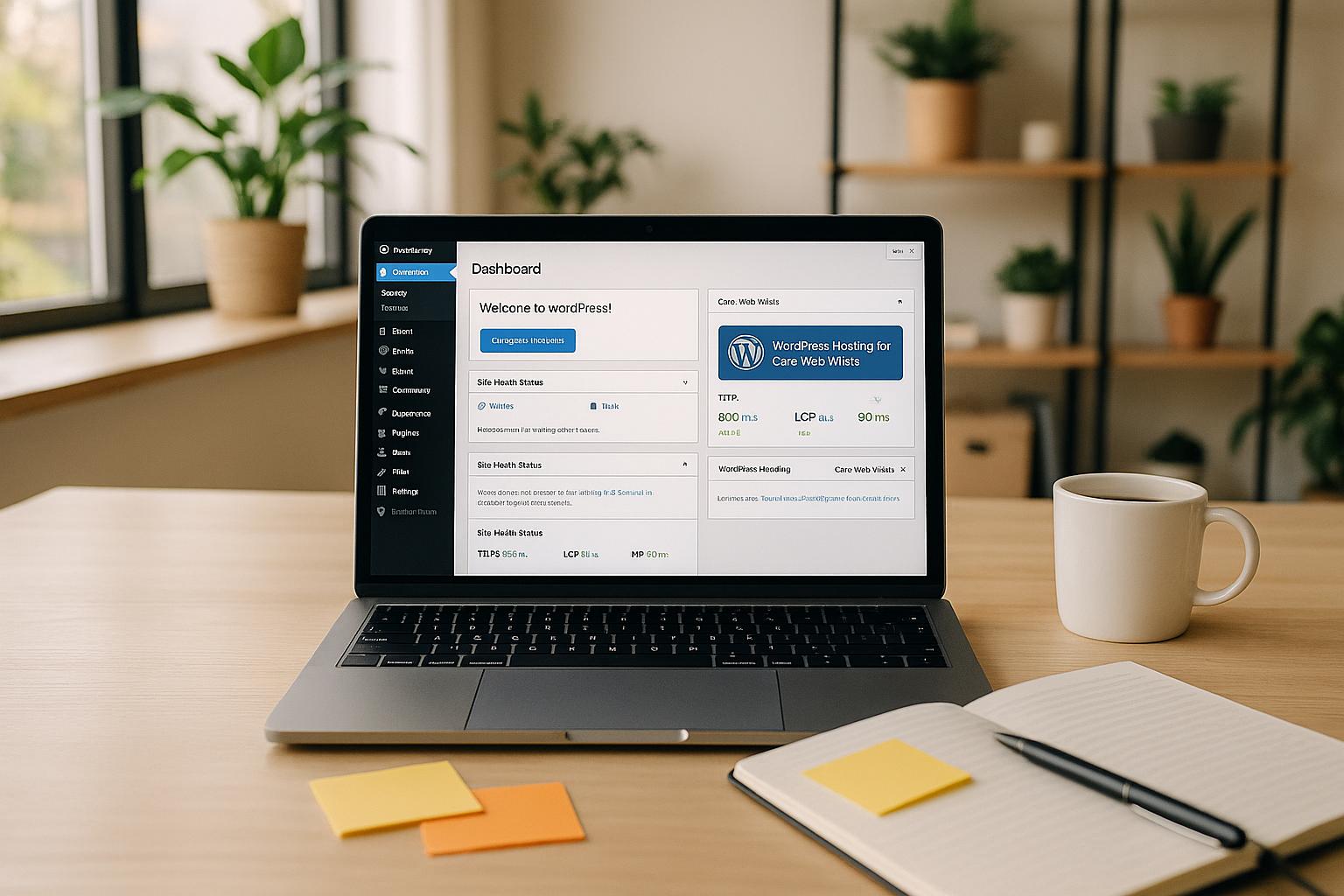
Your WordPress hosting directly impacts Core Web Vitals – Google’s key site performance metrics. These metrics (TTFB, LCP, and INP) influence search rankings, user experience, and conversion rates.
Here’s what you need to know:
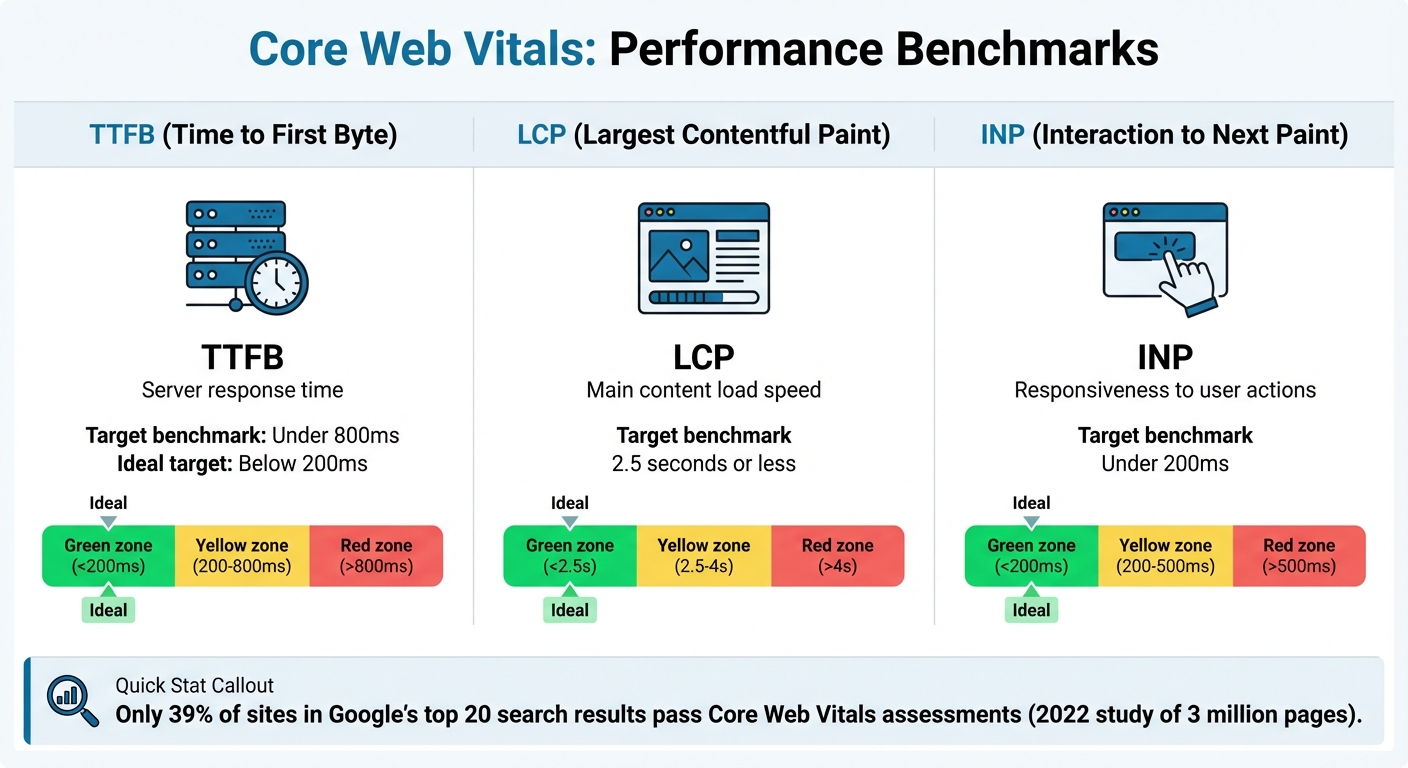
- TTFB (Time to First Byte): Measures server response time. Aim for under 800ms – ideally below 200ms.
- LCP (Largest Contentful Paint): Tracks how fast the main content loads. Target 2.5 seconds or less.
- INP (Interaction to Next Paint): Evaluates responsiveness to user actions. Keep it under 200ms.
Your hosting provider plays a major role in these metrics. Upgrading to modern infrastructure (like SSD storage, PHP 8+, and server-side caching) can significantly improve your scores. Tools like Google PageSpeed Insights and Search Console help identify performance issues, while changes like enabling a CDN, optimizing images, and deferring JavaScript can boost loading speed and responsiveness.
Quick Fixes:
- Upgrade to PHP 8+ and implement server-side caching.
- Use a CDN for faster content delivery.
- Optimize images (compress, use WebP) and preload critical assets.
- Defer non-essential JavaScript and audit plugins.
Improving your hosting and optimizing assets step by step can help you meet Core Web Vitals benchmarks, reduce bounce rates, and improve your site’s overall performance.
Core Web Vitals Metrics: TTFB, LCP, and INP Target Benchmarks
Top 10 Techniques to Improve Core Web Vitals for WordPress
How to Measure Core Web Vitals and Find Performance Issues
To uncover performance issues on your site, start by testing your Core Web Vitals. The right tools can help you identify what’s working and what might be slowing things down.
Tools for Measuring Core Web Vitals
Google PageSpeed Insights is a great starting point for analyzing individual pages. Head to the PageSpeed Insights website, enter your WordPress site’s URL, and click "Analyze." Within moments, you’ll get a report showing key metrics like Largest Contentful Paint (LCP) and Interaction to Next Paint (INP). At the top, the Core Web Vitals Assessment will let you know if your page passes or fails. Further down, the Diagnostics section provides detailed insights – like identifying the specific HTML element causing LCP issues, which is often a large image or block of text.
Google Search Console offers a broader perspective by analyzing your entire site using real user data from Chrome browsers. Its Core Web Vitals report categorizes URLs as "Good", "Needs Improvement", or "Poor" and groups pages with similar issues. The Details tab helps you prioritize which groups to address first. Keep in mind that this tool uses a rolling 28-day window for its data, so improvements may take time to reflect in the report.
Google Lighthouse, integrated into Chrome DevTools, is perfect for more technical debugging. Simply right-click on your page, select "Inspect", and navigate to the Lighthouse tab. Run "Analyze page load" to uncover details on JavaScript execution, server response times, and render-blocking resources. For the most accurate results, use Incognito mode to avoid interference from browser extensions.
To track ongoing performance, the Chrome User Experience Report (CrUX) provides anonymized data from real users across various devices and networks, helping you spot trends over time.
Here’s a quick comparison of these tools:
| Tool | Best For | Data Type | Key Advantage |
|---|---|---|---|
| PageSpeed Insights | Individual page analysis | Lab + Field | Quick diagnostics with actionable tips |
| Search Console | Site-wide overview | Field (real users) | Highlights patterns across multiple pages |
| Lighthouse | Technical debugging | Lab | Detailed insights on JavaScript and rendering |
| CrUX Dashboard | Historical trends | Field (real users) | Tracks performance changes over time |
These tools work together to help you pinpoint and address performance bottlenecks.
How to Find Performance Bottlenecks
When analyzing your site, focus on three critical metrics: Time to First Byte (TTFB), Largest Contentful Paint (LCP), and Interaction to Next Paint (INP). These metrics are heavily influenced by your hosting setup.
Pay close attention to mobile performance, as mobile-first indexing makes it a priority. Mobile scores in PageSpeed Insights often trail desktop scores by 10–20 points, so optimizing for mobile is key. Use the data to identify the most pressing areas for improvement.
Field data is particularly important. Red flags include a TTFB over 800 ms, an LCP above 2.5 seconds, or an INP exceeding 200 ms. These issues often point to problems with hosting, image optimization, render-blocking resources, or JavaScript. For instance, a 2022 study of 3 million pages revealed that only 39% of sites in Google’s top 20 search results passed Core Web Vitals assessments [2].
The Opportunities section in PageSpeed Insights highlights fixes that can make the biggest difference. Typically, addressing the top three recommendations can resolve 70–80% of performance issues. After implementing changes, test again in both lab and field environments to ensure real-world improvements are achieved.
How to Improve TTFB with WordPress Hosting
Your hosting setup plays a huge role in determining TTFB (Time to First Byte). Even the best caching strategies can’t make up for a sluggish server. If your server is slow, content delivery will inevitably be delayed.
Hosting Changes That Reduce TTFB
Start by upgrading to PHP 8+, which processes requests much faster than older versions. Pair this with server-side caching to avoid unnecessary PHP execution and database queries. With caching in place, your server can serve pre-generated content instantly, instead of building it from scratch each time a visitor lands on your site.
Another factor to consider is DNS resolution speed. Opting for premium DNS services can significantly cut down the time it takes for the initial lookup. For example, Turbify’s DNS management system is optimized for quick lookups, helping to reduce network latency.
These upgrades create a strong foundation for faster TTFB. Use the checklist below to ensure you’re covering all the essentials.
TTFB Reduction Checklist
- Implement persistent object caching to store database query results in memory, reducing repetitive database calls.
- Choose a hosting plan with dedicated resources to maintain performance during high-traffic periods.
sbb-itb-7459f5e
How to Improve LCP with Hosting, CDN, and Asset Changes
After addressing hosting improvements for TTFB, the next step is enhancing your site’s Largest Contentful Paint (LCP). LCP measures how quickly the largest visible element on your page loads – ideally in less than 2.5 seconds [7][8]. By fine-tuning hosting configurations and optimizing assets, you can achieve faster load times.
Setting Up Hosting and CDN for Better LCP
A Content Delivery Network (CDN) plays a key role in improving LCP by serving static assets – like images, CSS, and JavaScript – from servers closer to your visitors. This reduces latency and lightens the load on your primary server [3]. For example, Turbify’s CDN integration automatically distributes your content across multiple locations, ensuring quicker delivery regardless of your audience’s location.
Additionally, make sure your hosting provider uses SSD storage and implements caching optimized for fast content delivery [3]. These features create a reliable foundation for rendering your site’s content more swiftly. From there, focus on refining WordPress asset delivery to minimize delays further.
How to Optimize WordPress Assets
To improve LCP, start with image optimization. Compress images and switch to modern formats like WebP. For key images not handled by WordPress 6.3+, manually add the fetchpriority="high" attribute [7][9].
Next, streamline your CSS and JavaScript. Minify these files to reduce their size and defer loading non-critical resources. Separate your CSS into two categories: critical styles (for above-the-fold content) and non-critical styles (that can load later). Inline critical CSS directly into your HTML to speed up initial rendering. For JavaScript, defer non-essential scripts – like third-party widgets or analytics – until after the main content has loaded. Use font-display: swap; to ensure faster text rendering while fonts load.
Step-by-Step Process for LCP Improvements
- Enable Turbify’s CDN and confirm your hosting uses SSD storage with server-side caching.
- Optimize images by compressing them, adding
fetchpriority="high"to your LCP image (and ensuring it isn’t lazy-loaded), and minifying CSS and JavaScript files. - Preload critical resources, such as fonts and the LCP image, so browsers prioritize them during loading.
How to Reduce INP with Server and JavaScript Changes
Interaction to Next Paint (INP) gauges how quickly your site responds to user actions like clicks, form submissions, or menu selections. A solid INP score indicates your site reacts swiftly, while a poor score can result in frustrating delays. The usual culprits? Slow server responses [3] and JavaScript that ties up the browser’s main thread [1].
Server and Backend Changes for Faster INP
Your server’s processing power directly impacts how quickly your WordPress site handles interactions. A good starting point is enabling object caching through Turbify’s hosting dashboard. This feature stores database query results in memory, cutting down on the number of database requests your server has to handle [5]. Studies suggest that object caching can improve INP performance by 15–30% [5].
Beyond caching, take time to clean up your backend. Delete outdated post revisions, spam comments, and unnecessary transient data. Upgrading to PHP 8.2+ is another must-do step [6]. These backend tweaks help your server handle user interactions more efficiently, freeing up resources to respond faster. Once your server is optimized, turn your attention to JavaScript and front-end adjustments to further enhance INP.
JavaScript and Plugin Adjustments
While backend upgrades improve processing speed, front-end changes ensure smoother user interactions. JavaScript is often a bottleneck, as it can block the browser’s main thread and delay responses [1]. To address this, defer non-essential JavaScript and use async or defer attributes on script tags to prevent blocking [4].
Another important step is auditing your plugins. Some plugins unnecessarily load JavaScript across your entire site, even when it’s not needed [4]. Tools like WP Rocket’s "Delay JavaScript Execution" feature or the Async JavaScript plugin can automate much of this optimization. Research shows that fine-tuning JavaScript can boost INP scores by 20–40% [5].
Steps to Improve INP
- Evaluate your current INP score using tools like Google PageSpeed Insights or Chrome DevTools.
- Pinpoint slow interactions – navigation menus, form submissions, and modal windows are common trouble spots.
- Enable object caching and upgrade your backend to PHP 8.2+.
- Streamline JavaScript by deferring non-critical scripts and removing unused plugins.
- Re-test after 24–48 hours to measure improvements.
Conclusion: How to Improve Core Web Vitals with Turbify Hosting

Boost your Core Web Vitals effectively by leveraging Turbify’s WordPress hosting, built on Microsoft Azure and powered by NVMe SSD storage – delivering speeds up to 3–5 times faster than traditional drives [10]. These features are designed to tackle key metrics like TTFB, LCP, and INP, creating an environment optimized for performance from the ground up.
Your Implementation Plan
Start by focusing on hosting improvements: enable Turbify’s Quick Caching to enhance server response times [10]. Next, optimize your images and activate the CDN for faster content delivery. Follow up by deferring non-essential JavaScript and removing unnecessary plugins. Finally, ensure you’re running the latest PHP version supported by Turbify to improve backend processing speeds.
Make these changes step by step to evaluate their impact. Tackle one metric at a time – beginning with TTFB, then moving to LCP, and finally addressing INP. This approach ensures steady progress without risking disruptions to your site’s functionality.
How to Monitor Progress Over Time
Once you’ve implemented these optimizations, tracking your progress becomes essential. Use Google Search Console to monitor Core Web Vitals regularly. Start with weekly checks, then transition to monthly reviews. This habit will help you link specific changes to performance gains and identify any setbacks early.
Turbify’s proactive management tools also keep an eye on your site’s health and performance, addressing potential issues before they can affect your visitors [10]. By combining these tools with your own tracking efforts, you’ll gain a clear understanding of your site’s performance trends and make well-informed decisions for future improvements.
FAQs
How does upgrading to PHP 8+ help improve Core Web Vitals on WordPress?
Upgrading to PHP 8+ can make a noticeable difference in your site’s performance. By cutting down server response times, it directly improves the Time to First Byte (TTFB), which is essential for delivering a faster browsing experience. This speed boost also enhances metrics like Largest Contentful Paint (LCP) and Interaction to Next Paint (INP), ensuring a smoother and more enjoyable experience for your visitors.
On top of that, PHP 8+ brings significant performance upgrades, such as quicker execution and reduced resource consumption. These improvements make your WordPress site run more efficiently and responsively, which can have a positive effect on your Core Web Vitals. As a result, this can contribute to better SEO rankings and overall site performance.
How does a CDN help improve Largest Contentful Paint (LCP)?
A Content Delivery Network (CDN) helps improve LCP (Largest Contentful Paint) by shortening the distance between your website’s server and your visitors. It works by storing and delivering assets like images and scripts from servers that are geographically closer to users, which significantly reduces loading times.
By cutting down delays and enabling faster content rendering, a CDN is key to creating a smoother user experience and meeting Core Web Vitals performance standards.
Why is it important to optimize JavaScript for better Interaction to Next Paint (INP)?
Optimizing JavaScript plays a key role in improving Interaction to Next Paint (INP) by cutting down delays in how user inputs are processed. When JavaScript isn’t optimized, it can hold up the browser, preventing it from responding quickly to user actions. This results in slower interaction times, which can frustrate users.
To address this, focus on streamlining your JavaScript. This includes steps like getting rid of unused code, deferring scripts that aren’t immediately needed, and reducing file sizes. These tweaks lead to smoother performance and quicker feedback for users. Plus, it can boost your site’s SEO and improve its Core Web Vitals scores, making it a win-win for both usability and search rankings.