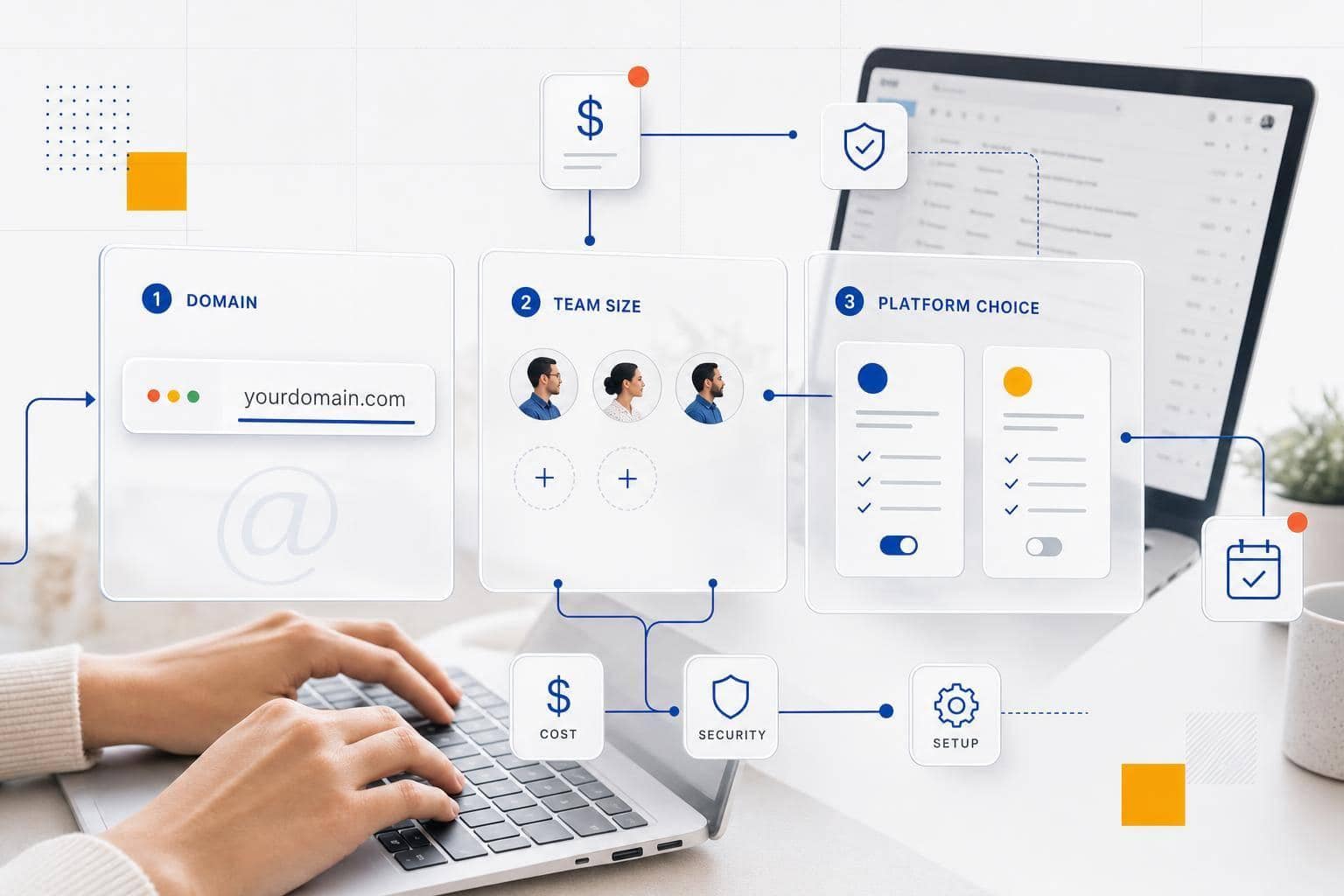

Small teams often pay for extra apps when Google Drive, Docs, Meet, and Calendar already cover the work. My take is simple: if your team needs file storage, shared writing, video calls, and scheduling, these four tools are usually enough. Below, I’ll show you how they fit together, where they save time, and what to set up first.
Use Google Workspace For Small Businesses (2025)
How to Set Up Google Drive as Your Team’s Shared File Hub
My Drive vs Shared Drive: Which Should Small Teams Use?
Set up Google Drive first. That gives your team one place for files, so Docs, Meet, and Calendar all connect to the same system.
Google Drive is where the work lives. Docs edits those files, Meet talks about them, and Calendar helps your team plan around them.
Build a Folder Structure the Team Will Use
Keep your folder tree shallow. If people have to click through six levels to find a file, they’ll stop using the system and save things wherever they want.
For client work, use a client-based folder setup. For internal files, use a numbered department layout like 01 Brand, 02 Products, 03 Orders & Operations, 04 Marketing, 05 Finance. The numbers keep folders in a fixed order, which makes scanning faster.
Use one file naming rule across the team. A format like YYYY-MM [Description] works well because files sort in date order and stay easy to search.
Add a Templates folder for repeat-use files like proposals, invoices, and meeting agendas. That saves time and keeps your team from remaking the same document over and over.
Once this is in place, Docs files can live in the right project folder from day one instead of floating around someone’s personal Drive. Your next move is to sketch the folder tree and naming rule before your team starts adding files.
Use Shared Drives for Team Files
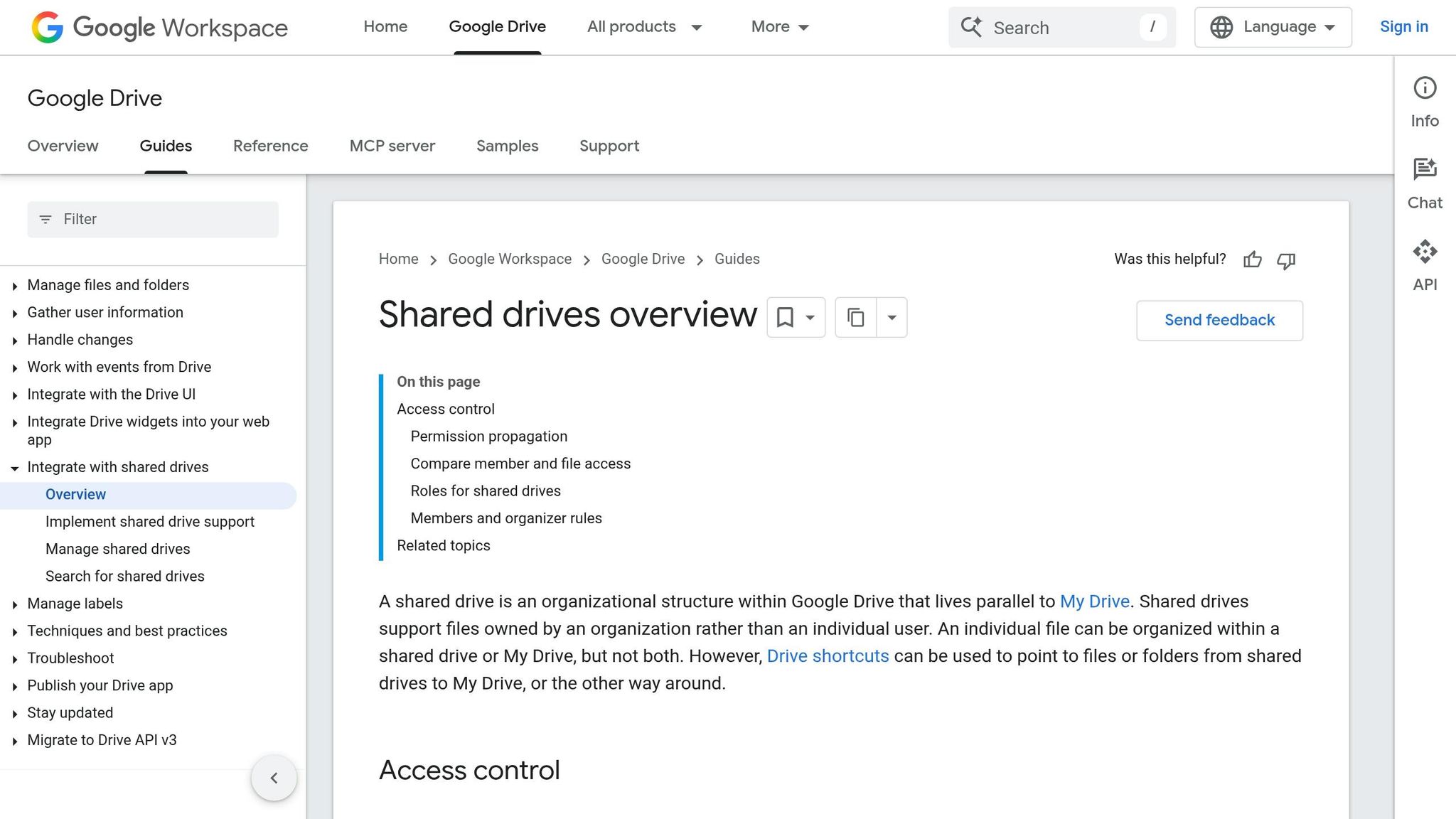
Put team files in Shared Drives. That keeps company work with the business instead of tying it to one employee’s account.
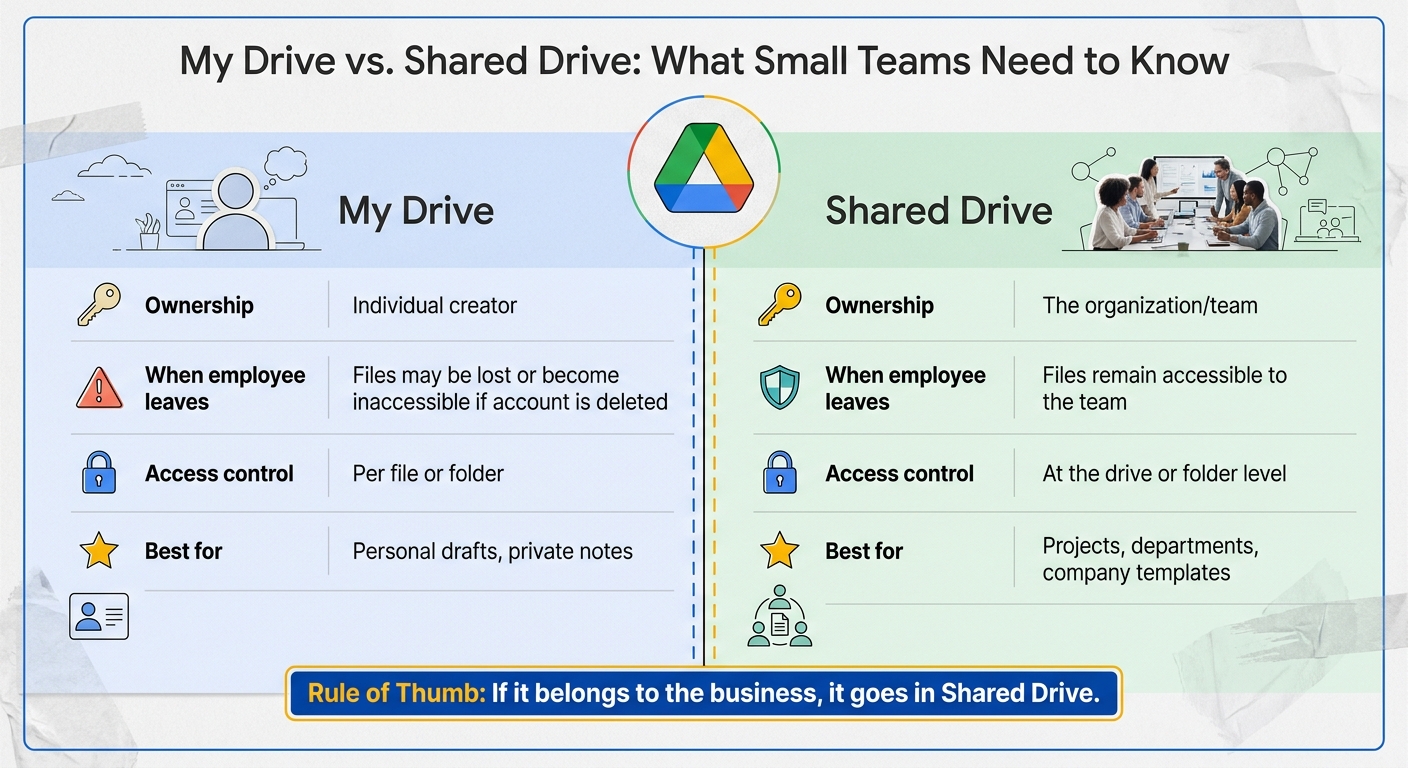
Here’s the plain-English difference:
| Feature | My Drive | Shared Drive |
|---|---|---|
| Ownership | Individual creator | The organization/team |
| When an employee leaves | Files may be lost or become inaccessible if the account is deleted | Files remain accessible to the team |
| Access control | Per file or folder | At the drive or folder level |
| Best for | Personal drafts, private notes | Projects, departments, company templates |
My Drive is fine for personal drafts and private notes. Shared Drive is the right home for projects, department folders, and company templates.
This matters most when staff changes happen. If a file sits in one person’s My Drive and that account is shut down, your team can lose access. Put business files in Shared Drives now, before that turns into a cleanup job.
Set the Right Sharing Permissions From the Start
Set permissions at the start. If you wait, you’ll end up fixing access one file at a time, and that gets messy fast.
Use least-privilege access – give people only the access they need. In Google Drive, that usually means Viewer for read-only access, Commenter for feedback without edits, or Editor for people who need to change the file.
Skip “anyone with the link” for internal files. Use specific email addresses or Google Groups instead, so you know exactly who can open what.
Grant access at the Shared Drive or folder level, not file by file. That way, when someone new joins the team, they get the right access automatically based on where they work.
With the structure and permissions in place, the next step is to start creating and reviewing documents inside the right folder from the beginning.
How to Create and Review Documents Together in Google Docs
Create each doc in the correct Drive folder from the start. That simple habit keeps every draft tied to the right project before anyone starts reviewing it.
Create Docs Directly Inside the Right Drive Folder
Open the destination folder in Drive first, then click New > Google Docs. Do that every time, and your proposals stay in the proposals folder, your SOPs stay in the SOPs folder, and your meeting notes don’t vanish into the wrong place.
Name the file right away with a set format like YYYY_ProjectName_DocumentType. That makes files easier to sort, search, and spot later when your team is moving fast.
Use Comments, Suggestions, and @Mentions to Speed Up Reviews
Use Suggesting mode for edits. It works like track changes. Use comments for feedback, and use @mentions to send questions to the right person without starting a long email chain.
Type @ and then a teammate’s name. They’ll get an automatic email with a direct link to the exact spot in the doc, so the whole discussion stays in one place. For client feedback, give Commenter access or use Suggesting mode so changes stay under control.
When the stakes are higher, keep version history in your back pocket.
Use Version History to Protect Documents That Matter
Check version history at File > Version history > See version history. Google Docs saves every change, which is a lifesaver for contracts, SOPs, and policies.
If someone deletes a paragraph or rewrites a section that shouldn’t have changed, you can roll back to an earlier version without wiping out the rest of the document. That’s a lot better than trying to piece things back together by hand.
Tip: Name important versions – for example, Final Approved Contract or Q3 SOP Draft – so you can find them quickly later.
When the document is ready, the next move is to bring the review into Meet and Calendar.
sbb-itb-7459f5e
How Meet and Calendar Turn Files and Docs Into a Working Team Schedule
Use Calendar and Meet to turn a finished doc into an actual meeting plan. The file stays in Drive, the discussion happens in Meet, and Calendar keeps the timing straight.
That setup cuts the usual mess. You’re not digging through email for links, notes, or the latest draft right before a call.
Schedule Meetings in Calendar With Meet Links Built In
Calendar makes meeting setup simple. Every new event includes an Add Google Meet option, and one click creates the Meet link and adds it to each guest’s invite.
That means no last-minute setup before the call. Your team gets one invite with the time, guest list, and meeting link all in one place.
Color-coding also helps you read the week fast. Use blue for client calls and green for internal check-ins, so your calendar makes sense at a glance.
If you want clients to choose their own time, Calendar’s Appointment Slots lets them self-schedule without the usual back-and-forth email. That saves time and cuts down on scheduling mistakes.
Tip: Set your working hours in Calendar settings so teammates can’t accidentally book a meeting outside your available time.
Your next move: set up color rules for your calendar and turn on Appointment Slots if clients book time with you often.
Attach Agendas, Notes, and Files Before the Meeting Starts
Attach the agenda and files before the meeting, not during it. The attachment icon in the Calendar event editor lets you add any Google Doc or Drive file straight to the invite.
A good rule is to attach the meeting agenda at least 24 hours before the call. Guests get access based on the file’s sharing settings, so they can review the right material before the meeting starts.
This avoids that all-too-common moment when someone asks where the brief is two minutes into the call. The proposal, SOP draft, or client notes are already sitting in the event, ready to open.
Your next move: start attaching the agenda, key doc, and any notes at the same time you create the event.
Run Simple Meetings Without Extra Software
For most small business teams, Google Meet is enough. It runs in a browser, so you can handle quick reviews, client calls, and internal check-ins without adding more software.
You still get the tools most teams use every week:
- Screen sharing for walkthroughs
- In-meeting chat for links and side notes
- Live captions for clearer calls
If your team is on Business Standard or higher, Meet recordings save automatically to Google Drive after the call ends [1][4]. That gives you a record for client calls, internal training, or any meeting you may want to watch again later.
The same setup works across the board. Client calls, team check-ins, and follow-up meetings can all run from the same simple system.
Your next move: test a Calendar invite with a Meet link, one attached doc, and recording turned on if your plan includes it.
How a Small Business Can Use This Workflow Day to Day
Use the same simple process every time. That’s what turns file storage, docs, and meetings into a system you can rely on.
Once your folders, access settings, docs, and meeting tools are set up, the work gets a lot easier to repeat. You’re not starting from scratch each time. You’re following the same path, which means less confusion and fewer dropped handoffs.
Example: Manage Client Work From File Sharing to Follow-Up
Put client files in a Shared Drive folder, not My Drive. That keeps the work tied to your business instead of one person’s account.
Draft the proposal in the client folder, then send it for review. Book the review in Calendar and attach the proposal Doc so everyone walks into the meeting with the right file in front of them.
After the meeting, set a follow-up Calendar event and link it straight back to the same proposal Doc. That makes the next step clear, and it cuts down on the classic “I thought someone else had it” problem.
The win here is simple: Drive, Docs, Meet, and Calendar all point to the same piece of work. Everything stays in one place, so the next person can pick it up without digging through email or Slack.
Example: Keep Internal Processes Organized
Use the same setup for your internal work. It’s just as useful for team operations as it is for client jobs.
Keep one Google Doc or a Drive folder index as the main reference for projects, deadlines, and owners. Pick one master source for each project, then link to it from other places instead of making copies.
Store SOPs in a shared 03 Operations folder so your team can find the current version fast. Run weekly check-ins from a recurring Calendar event with a Meet link and the agenda Doc attached, so the meeting starts with the right context every time.
Again, each step stays in the same folder. That means the next person always knows where to jump in.
Common Mistakes to Avoid When Keeping the Workflow Simple
Keep files in Shared Drives, keep folders plain, and keep one source of truth. Those three habits prevent most workflow messes.
The biggest mistake is storing work files in personal My Drive accounts. If that person leaves, access can disappear. Shared Drives fix this because the files belong to the organization, not the individual. [2][3]
Another mistake is making the folder structure too complicated. Stick with a plain setup like 01 Brand, 02 Products, 03 Operations, 04 Marketing, 05 Finance. It may feel dull, but dull is good here because your team can find things in seconds.
The third mistake is copying the same data across multiple tools. Pick one master source, then link to it everywhere else.
If only one person knows where files live, fix that next.
How This Google Workflow Fits With Your Turbify-Powered Business Setup
Use Google for your day-to-day work and Turbify for what customers see. That setup keeps things simple: one platform for your website, store, domain, and email, and one workflow for files, drafts, meetings, and deadlines.
Use Turbify for Your Website, Store, Domain, and Email
Use Turbify for the parts of your business customers deal with directly – your website, online store, domain, and business email. Buy your custom domain through Turbify and use it for your email address too.
A branded address like hello@yourbrand.com makes your business look more established. It’s a small detail, but customers and suppliers notice it. While Turbify handles the public side, Google takes care of the work happening behind the curtain.
Use Google Tools to Manage the Work Behind the Scenes
Write product descriptions, blog posts, and policy pages in Docs before you post them to your Turbify site or store. That gives you one place to draft, edit, and get feedback before anything goes live.
Keep internal files like product photos and launch checklists in Drive. Use Shared Drives – folders owned by your company, not by one employee’s account – so your team keeps access even if someone leaves.
This same Drive-Docs-Meet-Calendar setup supports the site, store, and email you run on Turbify. You end up with a clean split: Turbify handles customer-facing work, and Google handles internal work.
Your Next Step: Build One Simple System Instead of Adding More Software
Set up Turbify for your domain, hosting, and storefront, then run your internal workflow in Google. You’ll have one setup for customer-facing work and one for the work your team does every day.
FAQs
When should my team use Shared Drives instead of My Drive?
Use Shared Drives for company files. That keeps work with the business instead of tying it to one person’s account.
Here’s why that matters: files in My Drive belong to the person who made them. If an employee or contractor leaves, you can lose access or end up scrambling to recover key documents.
Shared Drives fix that problem. The files belong to the team, not an individual, which makes them the right fit for work that needs to stay in place over time.
They work best for team projects and long-term file storage, including departmental files, client contracts, and onboarding documents. If a file should still be there six months from now no matter who comes and goes, put it in Shared Drives.
What’s the easiest way to keep Docs, Meet, and Calendar tied to one project?
Use a shared Google Drive folder as the project’s home base. Put all files in one place, then set up a dedicated project calendar for milestones and deadlines. In each calendar event, add a link to the right folder or Google Doc so your team can jump straight to what they need.
Schedule meetings from that same calendar. Google Meet links are added on their own, which saves time and cuts down on mix-ups. You end up with files, meetings, and deadlines tied together without paying for extra software.
Your next move is simple: create the folder first, make the calendar second, and start linking each event to the exact file people need.
Can a small team run this workflow without extra training or IT help?
Yes. Google’s tools are easy to use for most small business owners because the interface already feels familiar. You don’t need to download software, and that cuts out a lot of friction.
Google also gives you step-by-step setup help, and you can often get things running in as little as 15 minutes. If you want everything in one place, Turbify also helps by bundling hosting, domains, and email into a single platform.
If that sounds like the simpler path, compare Google’s guided setup with Turbify’s all-in-one option and pick the one that matches how hands-on you want to be.