
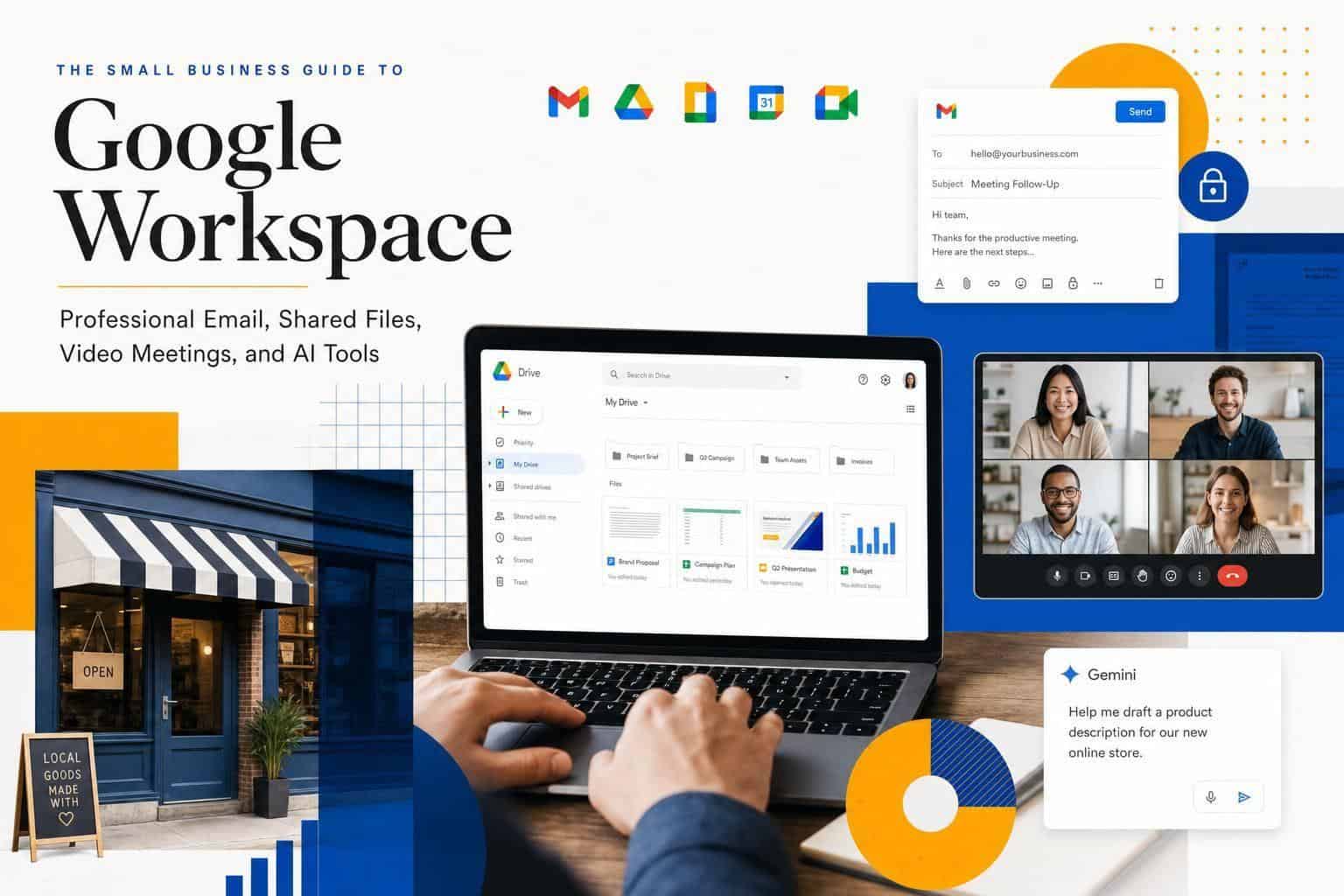
Google Workspace can replace your patchwork of email, file sharing, meetings, and draft-writing tools with one setup that most small businesses can run without an IT person. If you want one clear answer, here it is: Business Standard at $16.80/user/month is the right starting point for most teams, because Starter is tight on storage and Plus is overkill unless you need records retention or large meetings. Below, I’ll walk through what to buy, what to set up first, where teams get stuck, and how to use Gemini without making a mess of your data.
The big win is simple: put company email, company files, and company meetings under company control. That means no more sending proposals from yourname@gmail.com, no more “final-v3” attachments buried in inboxes, and no more guessing who owns a client thread.
If I were setting this up for a small business, I’d focus on five moves first:
- Buy the right plan. For most teams, that’s Business Standard.
- Connect your domain so your email looks like
you@yourbusiness.com. - Set up shared inboxes like
info@orsupport@the right way. - Put company files in Shared drives, not in one employee’s personal Drive.
- Turn on 2-step verification before your team starts using it.
A few numbers matter here. The article notes that more than 11 million paying organizations use Google Workspace. It also shows the gap between plans is not small: Starter gives you 30 GB per user, while Standard jumps to 2 TB per user. For many businesses, that storage jump alone is worth the extra $8.40/user/month.
I’d also make one clear call on setup: do your DNS work carefully and do it early. DNS – the settings that tell the internet where your email should go – is where many setups slow down. Domain checks and mail routing changes can take up to 48 hours, so don’t leave that until Friday at 4:30 p.m.
The email piece matters more than many owners think. A branded address does not just look nicer. It tells customers they’re dealing with a real business. And once you add aliases and group inboxes, you can route messages like sales, billing, and support without paying for extra seats where they aren’t needed.
For files, the rule is easy: personal work in My Drive, company work in Shared drives. If a file belongs to the business, the business should own it. That one choice saves headaches later when someone leaves and their account no longer holds half your client folders hostage.
Meet is the easy part. It works well because it ties straight into Gmail and Calendar. You can book a call, join from one link, record it on Standard or above, and save the recording to Drive without extra tools.
Gemini is useful too, but I would keep expectations grounded. It won’t run your business for you. What it will do is shave time off the boring stuff: drafting replies, turning rough notes into a first pass, pulling action items from meetings, and helping in Sheets if formulas aren’t your thing.
Before you turn Gemini on for everyone, check access and security. The article makes the right point here: review API Controls, limit access where needed, and require 2-step verification first. AI features save time, but only if your setup is clean.
One more practical point I liked: if your domain is with a provider like Turbify, keeping domain and DNS in one place can make setup less messy. Fewer logins. Fewer chances to edit the wrong record. Less back-and-forth while email is still down.
My bottom line: Google Workspace is a strong fit if you want one system for email, files, meetings, and AI help without a pile of separate apps. Start with Business Standard, set up your domain and security first, then roll out shared inboxes, Shared drives, and Gemini in that order.
What to do next: pick your plan, gather your domain login, list every mailbox you need, and block off 20 to 30 minutes for setup before you start clicking.
Google Workspace Tutorial for Small Business (2026) | Quick & Easy Guide for Beginners
sbb-itb-7459f5e
How to Choose the Right Google Workspace Plan and Get Set Up

Available from Turbify
Choose the right plan for your business
All plans include a 30-day free trial.*
Business Starter
Perfect for solopreneurs and micro teams just getting started.
- Custom email (you@yourdomain.com)
- 30 GB cloud storage per user
- Video meetings up to 100 participants
- Gemini AI in Gmail (limited)
- Docs, Sheets, Slides, Calendar
- Standard security controls
Business Standard
For organizations that need enterprise-grade security and support.
- 2 TB cloud storage per user
- Video meetings up to 150 participants
- Meeting recordings + noise cancellation
- Expanded Gemini AI (Docs, Sheets, Meet)
- Shared drives for teams
- eSignature for Docs & PDFs
Business Plus
Best for growing teams who need advanced collaboration tools.
- 5 TB cloud storage per user
- Video meetings up to 500 participants
- Attendance tracking + in-domain streaming
- Vault for retention & eDiscovery
- Advanced endpoint management
- Enhanced security & compliance
*Free trial available for all domains new to Google Workspace. Pricing shown is per user, per month. See current plans and terms at turbify.com/googleworkspace.
What to compare before you buy
Start by picking the plan that fits how your team works. For most small businesses, that means looking at storage, meeting limits, and which Gemini AI tools you get.
The three Business plans – Starter, Standard, and Plus – are mostly separated by storage, meeting size, and Gemini AI access. Most small businesses end up choosing between Starter and Standard.
Business Standard is the right default for most small businesses. If your team shares files, stores client work, or records meetings, the jump from 30 GB to 2 TB per user is a big deal.
Choose Starter if you’re a solo owner or a very small team that doesn’t store much and only needs Gemini for simple email drafting[8][9]. Choose Plus if you need Google Vault for email retention and search, or if you host large meetings with up to 500 people on a regular basis[8][9].
Note: New customers frequently qualify for introductory discounts. Check the current offer when you sign up[9].
Pick your plan before you start setup. It saves time and keeps you from reworking storage and user access later.
What you need before setup starts
Get a few items ready first. If you do that upfront, setup usually takes about 20 minutes.
You’ll need your custom domain, business name, main admin contact, user list, and billing details before you click Get Started. DNS changes – the records that tell the internet where your email should go – can take up to 48 hours to finish propagating.
- A custom domain (for example, yourbusiness.com) so you can use business email addresses
- DNS access so you can verify the domain and route email
- A user list with names, roles, and preferred email addresses, plus any shared addresses like info@ or sales@
- A credit card to start the 14-day free trial, though you won’t be charged until the trial ends[2][3]
Pull this together before you sign up. That way, you can move straight through the setup screens without stopping to hunt for logins or team details.
First setup steps in the Admin console
Follow the setup steps in order inside the Google Admin console. That keeps email from breaking and gets your team live faster.
First, verify domain ownership by adding a TXT record – a short line of text in your DNS settings – to your domain. Google gives you the exact code, and you paste it into your registrar’s DNS panel and confirm[3][7].
Next, point your MX records to Google. MX records tell other mail servers where to deliver your email, and you should remove any old MX records from your previous provider first so messages don’t get split or lost[3][7].
Then add SPF, DKIM, and DMARC records. These are email security checks that help keep your mail out of spam folders, and it’s smart to start DMARC with a p=none monitoring policy before making it stricter[3].
After that, add user accounts and set up shared addresses like support@ or billing@ with Google Groups. If you only need aliases – extra addresses that forward to an existing inbox – you don’t need extra paid seats[2][6].
Last, turn on 2-step verification for everyone on day one. That’s the extra sign-in step using a phone or app, and it blocks 99.9% of account hacking attempts[7].
Once email is working and user accounts are live, set up your Drive folders and sharing rules next.
How to Set Up Professional Email on Your Custom Domain
Set up your email structure before your team starts using it. That saves you from fixing a messy inbox setup later and makes sure customer messages go to the right person from day one.
Start with two decisions. First, decide where each person’s email should land. Then decide how shared messages like support@ or info@ should be handled.
How to create user mailboxes, aliases, and shared addresses
Give each person on your team a primary inbox. That’s their main email account, where they send, receive, and manage their own messages.
You can also add aliases. An alias is an extra email address that forwards mail to an existing inbox, so you don’t need to pay for another user license just to catch mail sent to a second address.
Then sort each address into the right role. Some should be personal, some should be shared, and some should route straight to a team inbox so several people can handle them.
How a small team can share an inbox without losing ownership of customer messages
Use the right sharing setup if more than one person handles customer email. Google Workspace gives you two clear options, and each solves a different problem.
Delegated access lets one team member read and reply from another inbox without sharing a password. That’s the better choice when an assistant, office manager, or backup staff member needs to help with one person’s email.
A collaborative inbox is built for shared team addresses. Team members can assign messages, reply, and mark them resolved, which makes it much easier to see who’s handling what and stops messages from getting lost.
Both options help your team reply faster. More than that, they keep ownership of each customer conversation clear, which matters when several people are involved.
Tip: Set up
support@orinfo@as a Google Groups collaborative inbox early so shared messages stay organized from day one.
How Turbify can help with domain and DNS setup
Keeping your domain and DNS with the same provider makes email setup easier to manage. DNS – the settings that tell the internet where to send your email and website traffic – is often where setup gets stuck.
If your domain is registered through Turbify, you can manage domain, hosting, and email from one dashboard. That means fewer logins, fewer chances to change the wrong setting, and less back-and-forth when you’re trying to get mail working.
Turbify also offers 24/7 support, which helps if setup stalls. If you’re setting this up now, map out your inboxes first, then add your shared addresses before your team starts sending mail.
How to Organize Shared Files in Google Drive
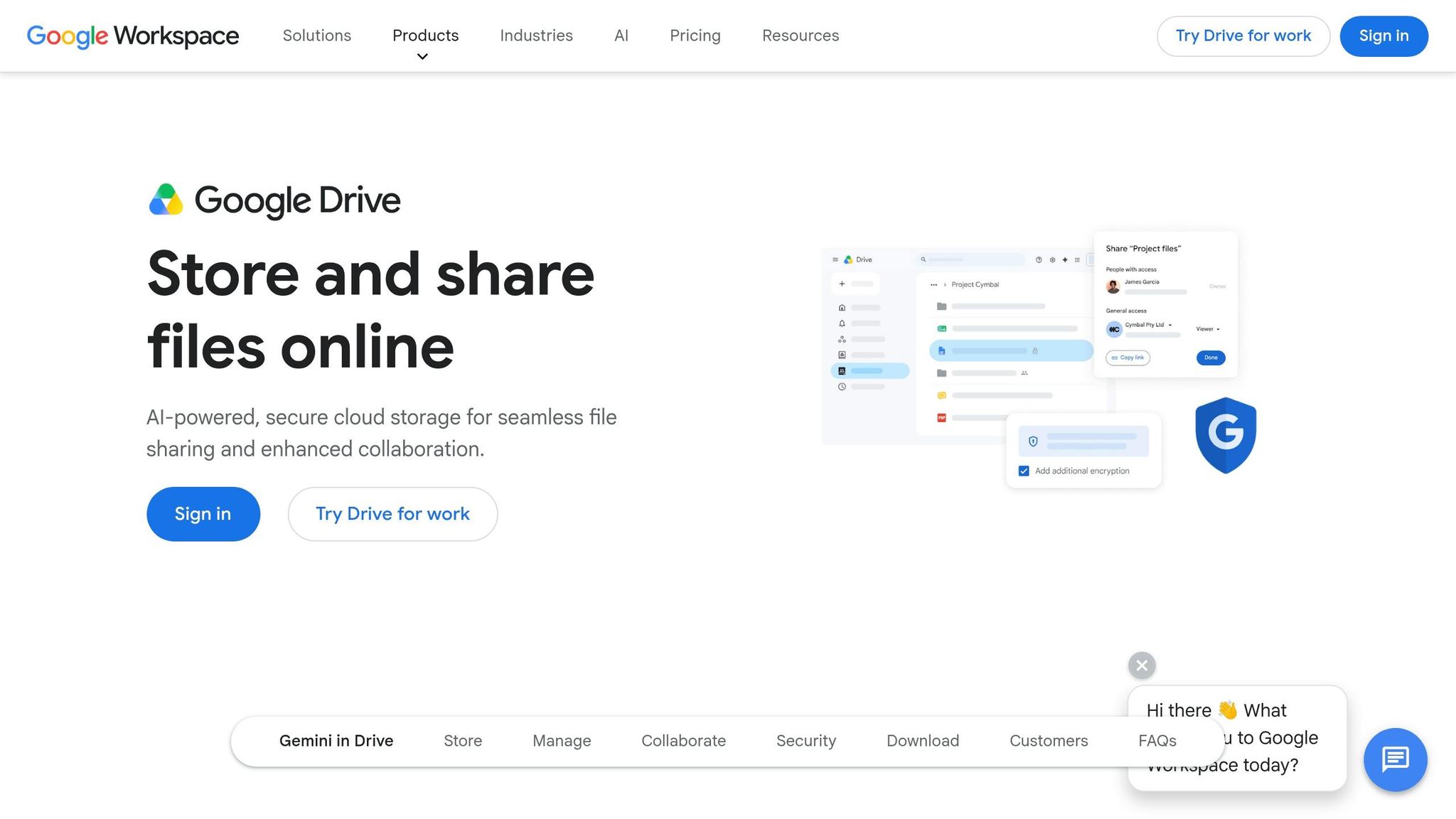
Set up your file system early. It saves time every week and cuts down on access mistakes.
Google Drive is where your team keeps the files they use every day – client files, SOPs, working drafts, and shared records. A simple setup makes those files easier to find and easier to protect.
My Drive vs. Shared drives: which one to use
Use My Drive for personal drafts. Use Shared drives for company files your team needs to keep.
The difference comes down to ownership. In My Drive, the person who makes the file owns it. In Shared drives, the business owns it.
| Feature | My Drive | Shared Drives |
|---|---|---|
| File ownership | Individual user | The organization/team |
| File persistence | Tied to the user account – files may be harder to recover when an employee leaves | Independent of individual account status |
| Best for | Personal drafts, private work | Team projects, company records |
| Plan requirement | All plans | Business Standard and above |
That matters more than it may seem. If an employee leaves, files in My Drive can be harder to recover. Files in Shared drives stay with the company.
Use My Drive for work in progress that only belongs to one person. Put SOPs, client files, financial records, marketing assets, and other long-term company documents in Shared drives.
How to structure folders and permissions for a small team
Keep your folder setup simple. Most small teams do well with a few Shared drives based on core business functions.
A setup like Sales, Operations, Client Work, and Resources is usually enough. If you make too many top-level folders, people stop knowing where things go.
Keep access tight. Most employees should have Contributor access, while team leads should have Manager access. Contributors can add and edit files. Managers can add members and remove files. [7]
For file names, stick to one format so files sort well and show up in search. A format like YYYY-MM-DD_ProjectName_Description works well because the date stays in order and the file purpose is clear. [3]
What to do next: create a small set of Shared drives, assign roles by job need, and pick one naming format your whole team will use.
How to share files securely with staff and clients
Use the lowest access level that gets the job done. That means View, Comment, or Edit – and nothing more. [10]
Avoid open links when you share outside your company. If a client only needs to read a file, give View access. If they need to leave notes, use Comment. Save Edit for cases where outside people must change the file.
Before your team starts sharing files outside your domain, set the rules in the Admin console. You can require approval or alerts for external sharing, and you should turn on 2-step verification for all users – the extra code step at sign-in – to help protect business files if an account gets compromised. [3]
Check these settings on a regular schedule. In the Admin console, review the Security section for third-party app access and external sharing settings. [3]
What to do next: set external sharing rules in the Admin console, turn on 2-step verification for everyone, and review your sharing settings before client files start moving around.
How to Run Client Calls and Team Meetings with Google Meet
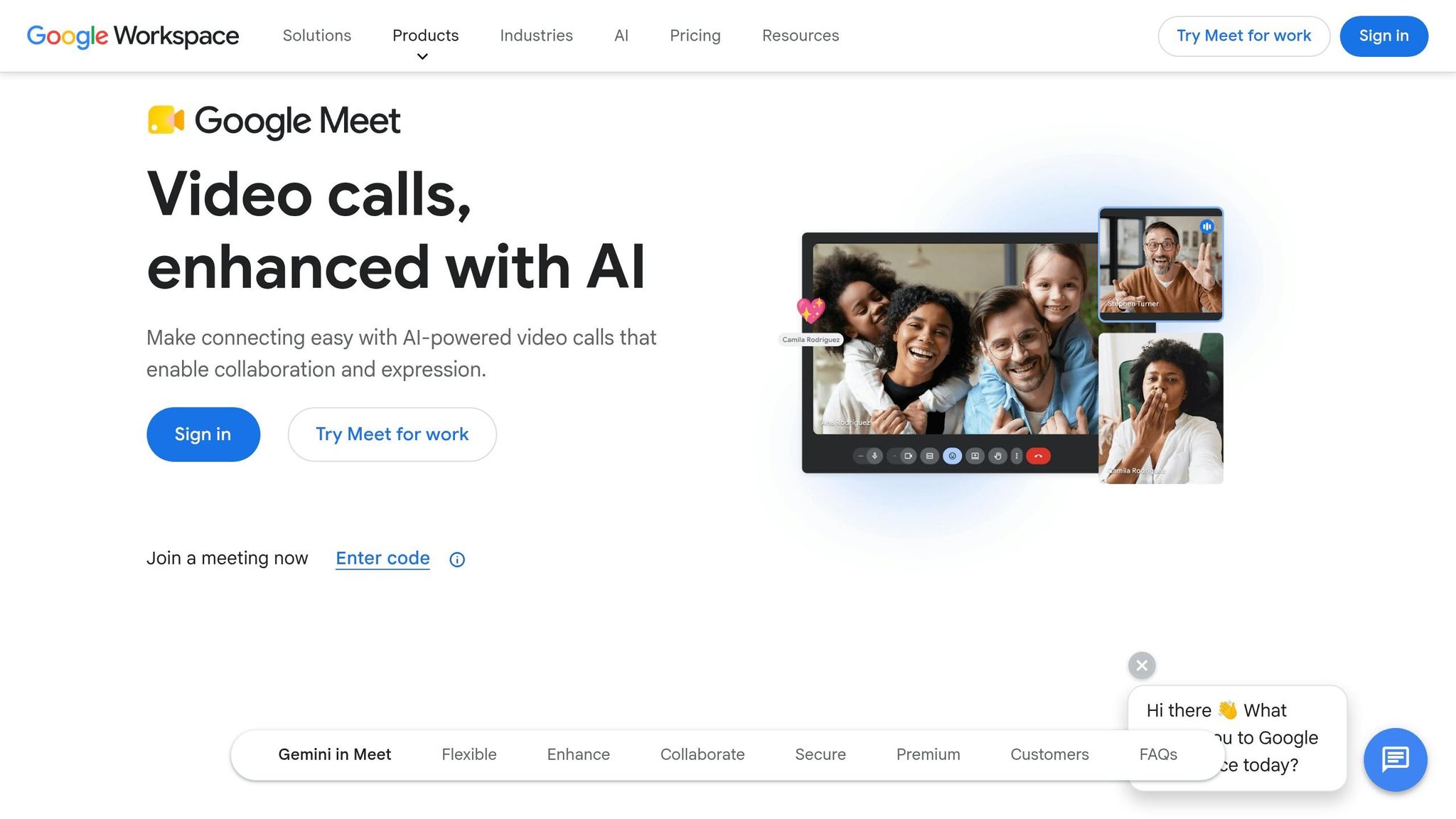
Google Meet is the fastest way to review files live once your documents are in order. It works with Google Calendar and Gmail, so your team can book and join calls in minutes instead of bouncing between apps.
How to start meetings fast
Use Google Calendar for planned meetings. Create the event, and Meet adds the meeting link on its own. Clients and staff can join from that link, even if they don’t have a Workspace account. [11]
For fast internal calls or short client check-ins, start an instant meeting from Gmail, the Meet app, or a Google Chat thread. That’s what makes Meet handy for quick updates, file reviews, and weekly check-ins. [11]
If you book client consultations often, set up Appointment Schedules in Google Calendar. You choose your open hours, and clients pick a time from a booking page you can place on your website. That cuts out back-and-forth email and gives you buffer time between meetings. [4]
Which Meet features are most useful for small businesses
Start with screen sharing. It lets you walk clients or teammates through Drive files, spreadsheets, and slides while everyone looks at the same thing. [1]
Live captions help when audio gets rough or someone is joining from a noisy place. Meet also offers translated captions, which can make cross-language calls easier to follow. [11]
If you need a copy of the call later, Business Standard and higher include recording and automatic transcription. Both are saved to Drive automatically, which makes follow-up much easier. [11]
Tip: Turn on noise cancellation in Meet settings before any client call. It filters out background sounds and helps keep your audio professional. [4]
Breakout rooms work well for team workshops or interviews with several parts. You can split a big group into smaller sessions, keep each discussion on track, and then bring everyone back into the main room. [4]
Recording and breakout rooms require Business Standard or higher. After the call, use Gemini to turn notes into follow-up drafts, then send next steps while the meeting is still fresh.
How Gemini AI Can Save Time in Gmail, Docs, Sheets, and Meet
Gemini saves time inside the tools your team already uses. If you pay for Google Workspace, it works right in Gmail, Docs, Sheets, and Meet.
That matters because most small teams don’t lose time on big projects. They lose it in email back-and-forth, blank documents, messy spreadsheets, and meeting follow-up.
What Gemini can do in everyday small-business workflows
Use Gemini where work tends to stall. It helps with email, writing, tracking, and call notes.
In Gmail, Gemini summarizes long threads and drafts replies based on the conversation. It can also pull out details from long back-and-forth chains, which helps when a client thread has been running for weeks.[5]
In Docs, Gemini helps you get past the blank page. You can describe the proposal, client brief, or product description you need, and it creates a first draft you can edit.[1]
In Sheets, Gemini can build trackers, suggest formulas, and sort data from a plain-language prompt.[1][11] That makes Sheets less of a headache if you don’t spend your day in spreadsheets.
In Meet, Gemini turns calls into notes, summaries, and action items.[1][11] That cuts down the time you’d usually spend replaying a meeting or typing follow-up notes.
| App | What Gemini Does | Practical Benefit |
|---|---|---|
| Gmail | Summarizes threads, drafts replies | Faster inbox management |
| Docs | Creates first drafts, rewrites tone | Less time starting from scratch |
| Sheets | Builds tables, suggests formulas | Easier tracking for non-experts |
| Meet | Notes, transcripts, summaries | Less manual follow-up after calls |
Start with the places where your team gets stuck most often. For most small businesses, that means Gmail and Meet first, then Docs and Sheets.
Admin and privacy settings to review before turning Gemini on
Set access and security before you switch it on. A short setup now can save you from a messy cleanup later.
First, check that Gemini is enabled for the right people under Apps > Google Workspace.[6] You can turn it on for everyone or limit it to certain staff, which is useful if contractors should not have access to private drafts.
Next, require 2-step verification under Security > 2-Step Verification before rolling out AI features.[5][3] That means users need a second login step, like a phone prompt or code, not just a password.
Google does not use organizational data to train public AI models.[11]
Then review Security > API Controls to manage which outside apps can connect to your Workspace data.[3] Do that before rollout so you know what other tools can see and use company information.

Gemini in Gmail only comes with Business Starter. To use it across Docs, Sheets, and Meet as described above, you need Business Standard, which is $16.80/user/month through Turbify.
Next Steps: Making Google Workspace Part of Your Full Business Setup
Use this checklist to finish your rollout. It keeps email, files, and team access clean from day one.
Start with these five steps:
- Choose your plan. Pick the plan that matches your storage, meeting, and AI needs.
- Connect your domain. Verify that you own the domain, update your MX records – the DNS settings that send email to the right server – to route mail to Google’s servers, and remove any old MX records from past providers.
- Create your mailboxes. Set up primary mailboxes first, then add role-based aliases like
info@andsales@. - Set up Shared drives. Create 3 to 5 Shared drives and assign access by role, not by person.
- Test Gemini. Once email and Drive are live, test Gemini in the workflow that causes the most friction first.
Google Workspace puts communication and collaboration in one system. If your domain is registered through Turbify, you can manage your domain, DNS, and hosting in one place, which makes it easier to run the domain behind both your email and website.
Your next move is simple: pick your plan, connect your domain, and get your first mailboxes live.
Plan comparison
Google Workspace plans side by side
Limits and features for the three Business plans available through Turbify.
| Feature |
Business Starter $8.40 per user / mo |
MOST POPULAR Business Standard $16.80 per user / mo |
Business Plus $26.40 per user / mo |
|---|---|---|---|
| Gmail & email on your domain | All plans | All plans | All plans |
| Google Drive storage | 30 GB | 2 TB | 5 TB |
| Google Meet participants | 100 | 150 | 500 |
| Gemini AI | Limited | Expanded | Expanded |
| Google Chat | Basic | Advanced | Advanced |
| Docs, Sheets, Slides & more | All apps | All apps | All apps |
| Appointment booking pages | No | Included | Included |
| Custom branding for templates | No | Included | Included |
| Shared drives for teams | No | Included | Included |
| Vault (retention & eDiscovery) | No | No | Included |
 Gmail & email on your domain
 Google Drive storage
 Google Meet participants
 Google Chat
 Docs, Sheets, Slides & more
Swipe the table sideways to see all plans.
All plans include a 30-day free trial for domains new to Google Workspace.
FAQs
Can I move my existing email to Google Workspace?
Yes – you can move your current email to Google Workspace.
The process is simple: sign up, verify that you own your domain, and update your domain’s MX records – the mail settings that tell the internet where your email should go. Once those records point to Google’s servers, new mail will start landing in Google Workspace instead of your old provider.
After that, you can use Google’s migration tools to bring over your existing email, contacts, and calendar data. If you already own a domain, you can use that same domain during setup.
How many paid users do I need for shared inboxes?
None. Google Workspace lets you create free email aliases, such as info@yourcompany or support@yourcompany, and they don’t count as paid user accounts.
That means you can set up shared inbox names for your business without adding to your monthly bill. Those addresses can also forward messages to one or more team members, which makes them a simple way to handle sales, support, or general contact emails while keeping subscription costs down.
What happens to company files when an employee leaves?
When someone leaves your company, their files can turn into a mess fast. Work gets stuck in personal accounts, folders go missing, and your team wastes time trying to track down what matters.
Shared Drives fix that on Business Standard plans and above. The business owns the files, not the employee, so your documents stay in one place and your team can still get to the projects, files, and records they need.
That matters for day-to-day work. If a sales manager leaves on Friday, your team should still be able to open proposals, client notes, and internal docs on Monday.
Your next move is simple: if you want company files to stay with the company, use Shared Drives on Business Standard or higher.