

Caching makes websites load faster by storing frequently accessed data closer to your visitors. When someone visits your site, instead of pulling every file from the server, caching serves pre-stored files like images and scripts, cutting load times significantly. This means happier visitors, better search rankings, and less strain on your server.
In this guide, I’ll explain how caching works, the types of caching you can use, and how to set it up easily – even if you’re not a tech expert. Let’s get started.
What Is Cache?
A cache is a temporary storage space designed to speed up data delivery. Think of it like a librarian keeping the most-requested books in a nearby backpack instead of trekking to a storeroom every time. The cache works the same way – storing frequently accessed data close at hand for quick retrieval. This simple concept drives the entire caching process.
When someone visits your website, their browser asks for dozens of files: images, stylesheets, JavaScript, and HTML. Without caching, your server has to piece everything together from scratch for every visitor – like reassembling a massive puzzle over and over again. Caching simplifies this by saving a “snapshot” of the completed puzzle, so the server can deliver it instantly without rebuilding.
The process relies on two outcomes: cache hits and cache misses. A “cache hit” happens when the requested data is already stored and ready to go, while a “cache miss” means the server retrieves the data and stores it for future use.
Andrew Butler, Content Strategist at WordPress VIP, explains it well: “Caching is the secure stashing of information where your computer can get it faster” [6].
Caching works so well because websites often use the same data repeatedly. Elements like your logo, navigation bar, or CSS files don’t change between visitors, so fetching them from the main server every time is unnecessary. By serving these static elements directly from the cache, your server workload drops dramatically. In fact, a well-implemented caching strategy can reduce the strain on your server by 80% to 95% [3], allowing it to handle more visitors without slowing down.
A great example of caching in action comes from AccuWeather. Back in 2011, their servers struggled to keep up with smartphone users requesting weather updates. By using edge servers to cache forecasts for users in the same area (simplifying GPS data to fewer decimal places), they cut daily server lookups by 50% [5]. This shows how caching can help serve more people, faster, with fewer resources.
How Does Caching Work?
Caching speeds up your website by storing copies of frequently accessed files for quick delivery. When someone visits your site, the system checks the cache first. If the requested file is already there (a “cache hit”), it’s delivered instantly. If not (a “cache miss”), the system fetches the data from the origin server, delivers it to the visitor, and saves a copy in the cache for future use.
Every cached item comes with a time-to-live (TTL) – a countdown in seconds that determines how long the file stays fresh. Once the TTL expires, the cache validates the content before serving it. This validation uses headers like If-Modified-Since or If-None-Match. If the file hasn’t changed, the server responds with a “304 Not Modified” status, letting the cache refresh its copy without downloading the entire file again. This process saves bandwidth and ensures visitors get up-to-date content.
Caches organize files by URL, and the Vary header allows for variations based on settings like language or encoding. For example, the same URL can deliver an English homepage to one visitor and a Spanish version to another, depending on their preferences.
The result? Faster load times and less strain on your server. As AWS puts it, “A cache’s primary purpose is to increase data retrieval performance by reducing the need to access the underlying slower storage layer” [1]. By keeping popular files in RAM (a much faster storage option), caching avoids the delays of fetching data from hard drives or distant servers. For small business websites, this means quicker page loads and a better experience for your visitors.
Types of Website Caching
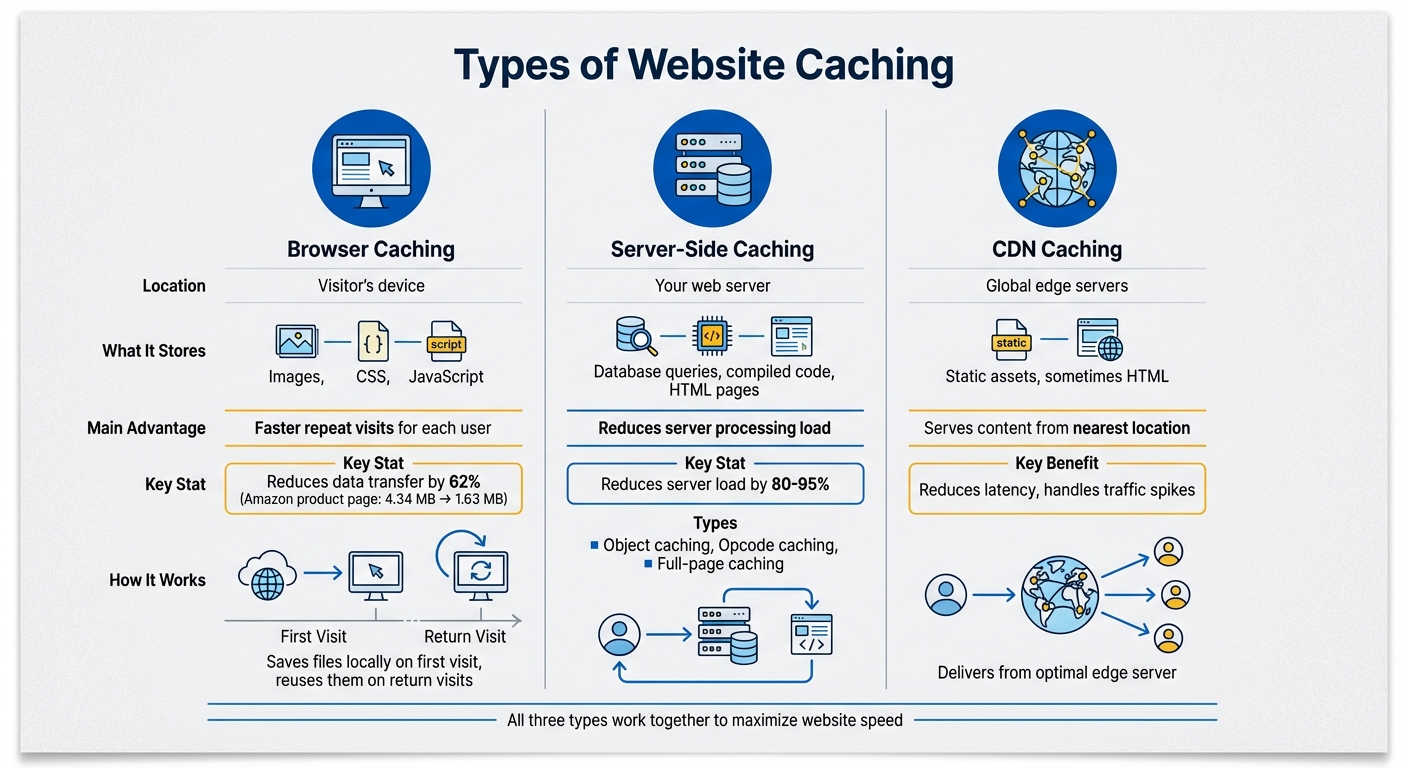
Three Types of Website Caching: Browser, Server, and CDN Comparison
Website caching happens on different levels, and the three main types – browser caching, server-side caching, and CDN caching – work together to make your site faster.
Browser Caching
Browser caching saves files like images, CSS stylesheets, and JavaScript directly on the visitor’s device. The first time someone visits your site, their browser downloads these files and stores them locally. On their next visit, the browser uses the saved files instead of downloading them again, making repeat visits much faster.
Your server decides what gets cached through HTTP headers like Cache-Control and Expires. For example, you might set a logo image to stay cached for a year while ensuring the homepage HTML is checked for updates every time. When a cached file expires, the browser uses headers like ETag or If-Modified-Since to check if the file has changed. If it hasn’t, the server responds with a 304 Not Modified status, allowing the browser to keep using the cached version. A test of an Amazon product page showed that browser caching reduced the page’s data transfer from 4.34 MB to 1.63 MB – a 62% drop [10].
Pro tip: Use versioned filenames like style.v123.css for CSS and JavaScript files. This allows you to set long expiration dates while ensuring visitors see updates immediately when you make changes [7].
While browser caching focuses on speeding up repeat visits for individual users, server-side caching improves performance by reducing the load on your backend systems.
Server-Side Caching
Server-side caching saves data on your web server, so it doesn’t have to repeat time-consuming tasks. Instead of regenerating a page or running the same database query repeatedly, the server stores the result and reuses it. This reduces CPU usage and speeds up response times.
Here are some common types of server-side caching:
- Object caching: Stores database query results in memory using tools like Redis or Memcached. This is especially useful for sites that repeatedly fetch the same product listings or user data [3][8][9].
- Opcode caching: Saves precompiled PHP code, so the server doesn’t have to compile scripts every time a page is requested [8][9].
- Full-page caching: Stores the entire HTML output of a page, allowing the server to serve it instantly without reprocessing PHP or querying the database [9].
According to NOC.org, “A well-configured caching strategy can reduce origin server load by 80% to 95%, lower page load times by hundreds of milliseconds, and ensure your site remains responsive during traffic spikes” [3].
CDN Caching
CDN (Content Delivery Network) caching works by storing copies of your website’s files on servers spread across the globe. When someone visits your site, they receive files from the server closest to them. For example, a visitor in Los Angeles gets files from a server in California, while a visitor in London gets them from a UK server. This reduces latency, which is the time it takes for data to travel across the internet.
CDNs typically cache static assets like images, CSS, and JavaScript, but some can handle dynamic content too. Beyond improving speed, CDNs reduce the load on your main server. Instead of your hosting server handling every request, the CDN takes on much of the traffic, keeping your site stable during busy times and even cutting bandwidth costs. However, you’ll need to manage cache invalidation carefully – this ensures outdated files are purged so visitors always see the latest version of your site [3].
Here’s a quick comparison of these caching types:
| Cache Type | Location | Contents | Main Advantage |
|---|---|---|---|
| Browser Cache | Visitor’s device | Images, CSS, JavaScript | Faster repeat visits for each user |
| Server Cache | Your web server | Database queries, compiled code, HTML pages | Reduces server processing load |
| CDN Cache | Global edge servers | Static assets, sometimes HTML | Serves content from the nearest location |
Benefits of Caching for Small Business Websites
Caching can make a big difference for small business websites, improving speed, reliability, and cost savings – all of which can directly impact your bottom line.
Faster load times keep visitors on your site. Did you know that 40% of people leave a website if it takes more than three seconds to load? Caching solves this issue by delivering pre-stored files instead of creating pages from scratch every time someone visits. Tools like Varnish Cache can make websites load 300 to 1,000 times faster than those without caching [4].
Lower server costs and reduced bandwidth usage. By storing files locally on visitors’ devices and serving pre-built pages, caching reduces the strain on your server. This not only speeds up your site but also saves you money. Ahmed Saeed, Lead Software Engineer at WP Rocket, puts it best:
Browser caching not only improves user experience but also reduces server load, making it a win-win for both site owners and visitors [2].
With less server work, you can stick to an affordable hosting plan and avoid extra bandwidth charges during high-traffic times like holiday sales.
Better search rankings and more organic traffic. Google ranks faster websites higher in search results, which means more people will find your site without you having to spend extra on ads. Plus, caching keeps your site stable during traffic spikes – whether it’s a viral social media post or a busy shopping season – so you won’t lose potential customers.
How to Set Up Website Caching with Turbify Hosting

To boost your site’s speed and performance, Turbify Hosting makes caching simple with its built-in LiteSpeed Web Cache Manager, available in the Advanced and Premier plans. The best part? You don’t need any coding skills to get started.
Here’s how to enable caching:
- Log in to your My Services page and select Hosting.
- Open the LiteSpeed Web Cache Manager.
- Click WordPress Cache, then hit Scan to detect your site.
- Once your site is detected, click Enable [12].
This process automatically installs and activates the LiteSpeed Cache plugin for WordPress. The plugin handles key optimizations like object caching, image compression, and more.
After enabling caching, log in to your WordPress admin panel. Under the LiteSpeed Cache menu, you’ll find preset options to fine-tune your site. These presets handle tasks like minimizing CSS and JavaScript, compressing images, and setting up browser caching – all with a single click [12]. To confirm caching is working, check your site’s HTTP headers using your browser’s developer tools. Look for X-LiteSpeed-Cache: hit to verify it’s active [14].
Built-In Optimizations
Turbify Hosting doesn’t stop at LiteSpeed. Your hosting plan includes NVMe SSD storage, which is up to 5× faster than standard SSDs [11]. Additionally, server-side optimizations like OPcache (opcode caching) are automatically enabled on Turbo Velocity, Turbo Nitro, and managed server accounts. These features speed up PHP processing and reduce server load without requiring any setup [13].
A Few Tips for Smooth Caching
- Avoid using extra third-party caching plugins alongside LiteSpeed Cache. Multiple caching systems can conflict and slow down your site [12].
- If you make updates to your site and they don’t show up, use the Flush All button in the LiteSpeed Web Cache Manager to clear the cache and refresh your site [12].
With caching set up, your site is ready to load faster and perform more reliably.
Your Next Step
Ready to make your website faster? Caching with Turbify is simple and can transform how your site performs.
A fast website keeps visitors around, improves conversions, and helps your search rankings. Enabling caching ensures your site delivers on speed, making it easier to engage your audience and achieve your goals.
Turbify’s Advanced and Premier hosting plans make caching a breeze. They include built-in LiteSpeed Web Cache Manager, automatic server-side optimizations, and NVMe SSD storage that’s 3–5× faster than standard SSDs [11]. Plus, you’ll have 24/7 expert support to guide you.
Set up in just 5 minutes: log in, scan your site, click Enable, and you’re done. No need to mess with plugins or .htaccess files.
Whether you’re starting fresh or upgrading your hosting, choosing a plan with built-in caching eliminates the hassle and gives your site the speed boost it needs. Check out Turbify’s hosting plans to find the right option for your business.
FAQs
Will caching break my site updates?
Caching won’t stop your site updates from working, but it might delay them from appearing right away. To see your latest changes, simply clear or refresh the cache. This will make sure your updates show up as intended without affecting how your site functions.
What should I cache vs not cache?
Caching static assets like images, CSS, and JavaScript files is a smart way to speed up your website. These files don’t change often, so storing them in a cache helps reduce load times for returning visitors.
Server-side caching is another useful tactic. It can save pre-rendered pages or results from common database queries, cutting down on the work your server has to do for each request.
However, avoid caching dynamic or personalized data – things like user-specific details or content that updates frequently – unless you’ve set it up correctly. Use cache control settings like private or no-cache to make sure sensitive or constantly changing data stays accurate and secure.
How do I tell if caching is working?
To see if caching is working on your website, open your browser’s developer tools and check the response headers. Look for signs like ‘X-Cache’, which indicates content is being served from the cache. Some caching plugins also offer built-in tools to test this for you. For a clearer picture, try using Incognito mode or dedicated performance testing tools. These manual checks tend to give the most reliable confirmation of your cache’s performance.